Product Variations
The Product Variations menu is used to manage choices or differences of the same product, such as size, color, or specific type.
Variations help users to:
- Manage products with multiple choices
- Avoid product duplication
- Simplify the transaction process
- Generate more accurate sales reports
What Are Product Variations?
Product variations are additional options for one main product.
Examples:
- Product: Coffee
- Variations: Hot, Cold
- Product: Beverage
- Variations: Small, Medium, Large
- Product: Shirt
- Variations: S, M, L
Variation Menu Functions
The Variations menu has main functions:
- Adding options to products
- Setting different selling prices for each variation
- Managing cost price per variation
- Making it easier for cashiers during transactions
Variations Page View
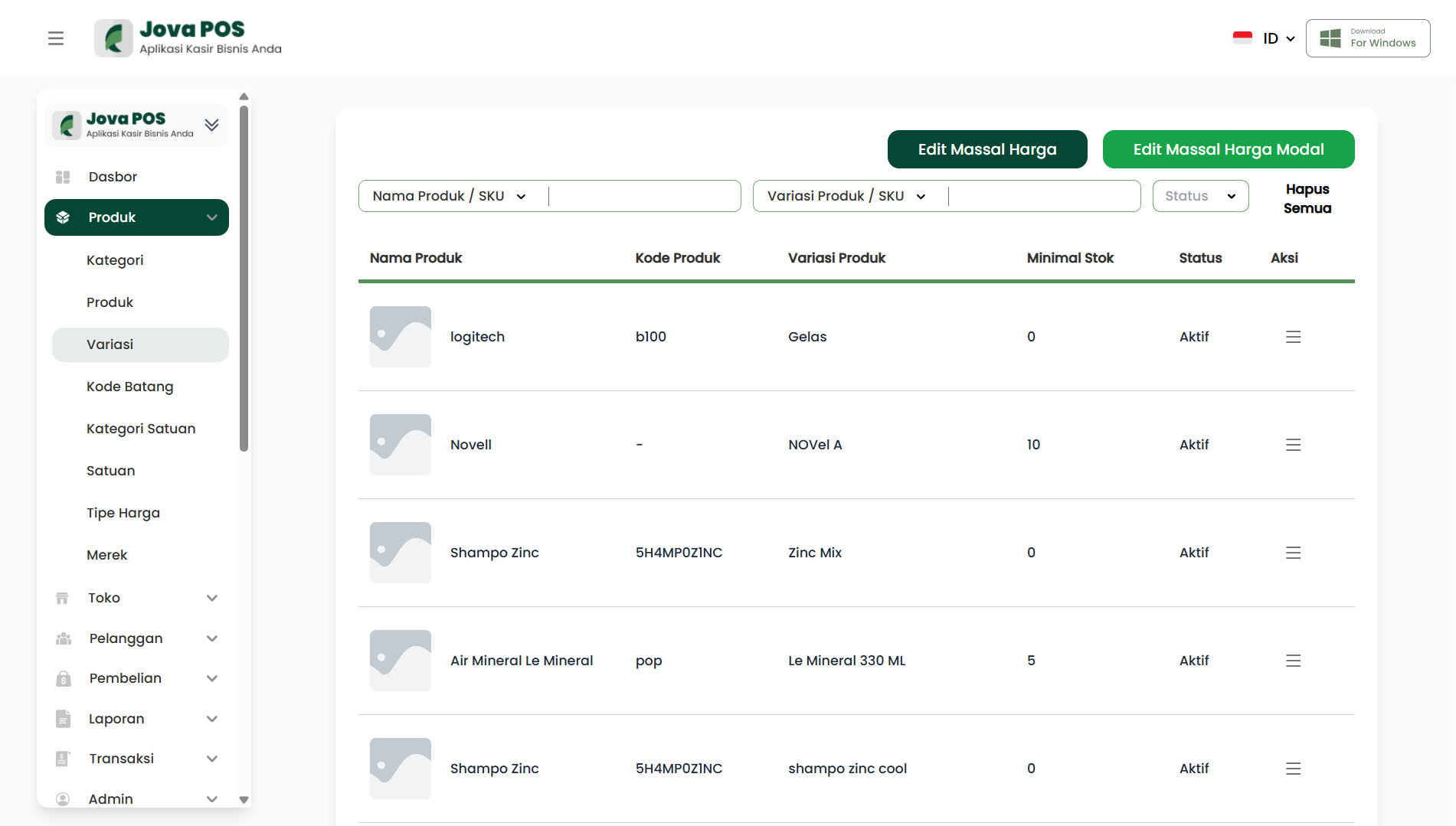
Variations Page Sections
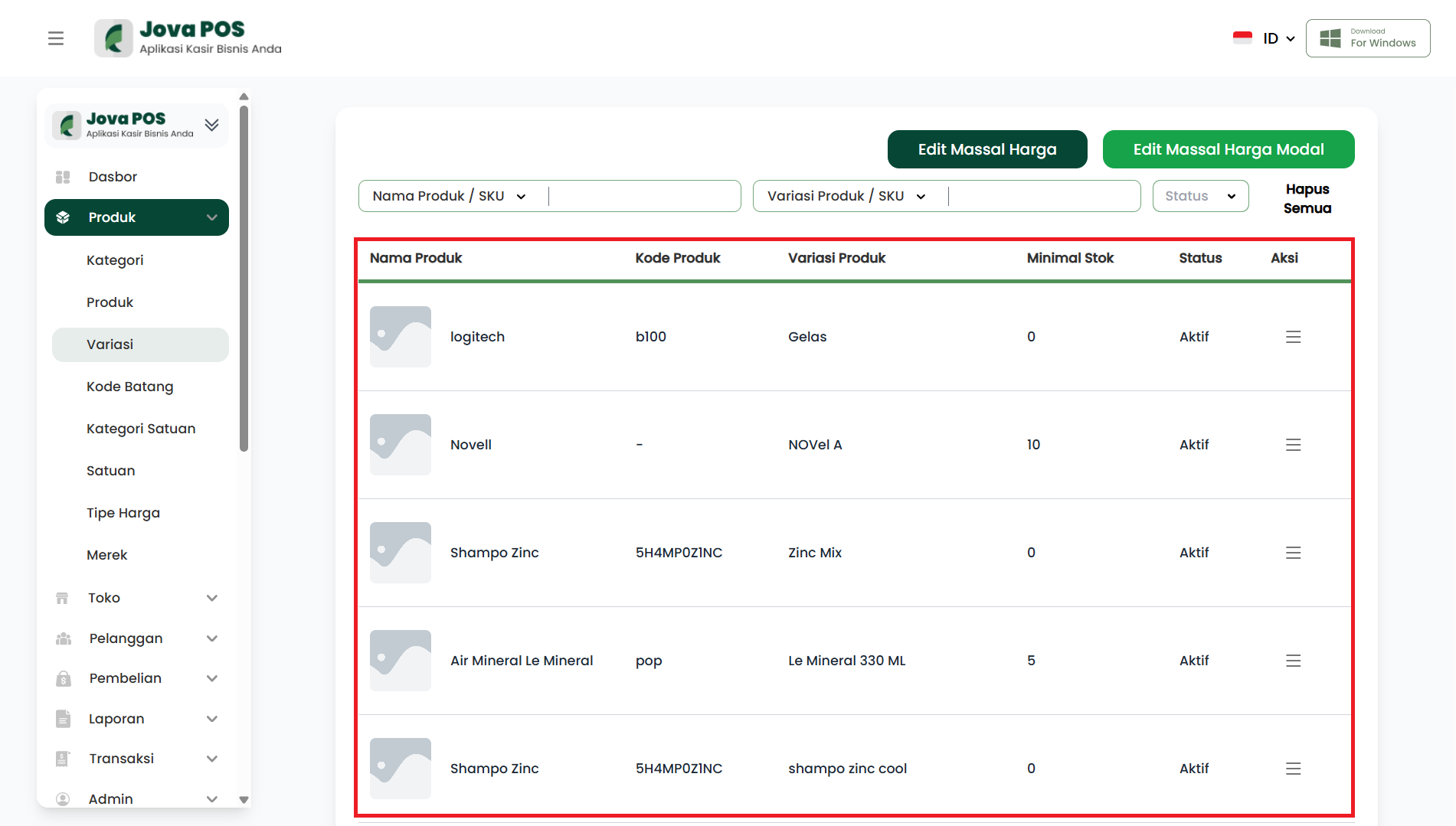
1. Variation List
Displays all variations that have been created.
Information displayed:
- Variation Name
- Product
- Selling Price
- Cost Price
- Variation Status
2. Edit Variation Button
The Edit Variation button is used to change the following data:
- Variation Name
- Minimum Stock
- Variation Status
- Variation SKU, including:
- SKU Number
- Barcode
- Unit
- Normal Price
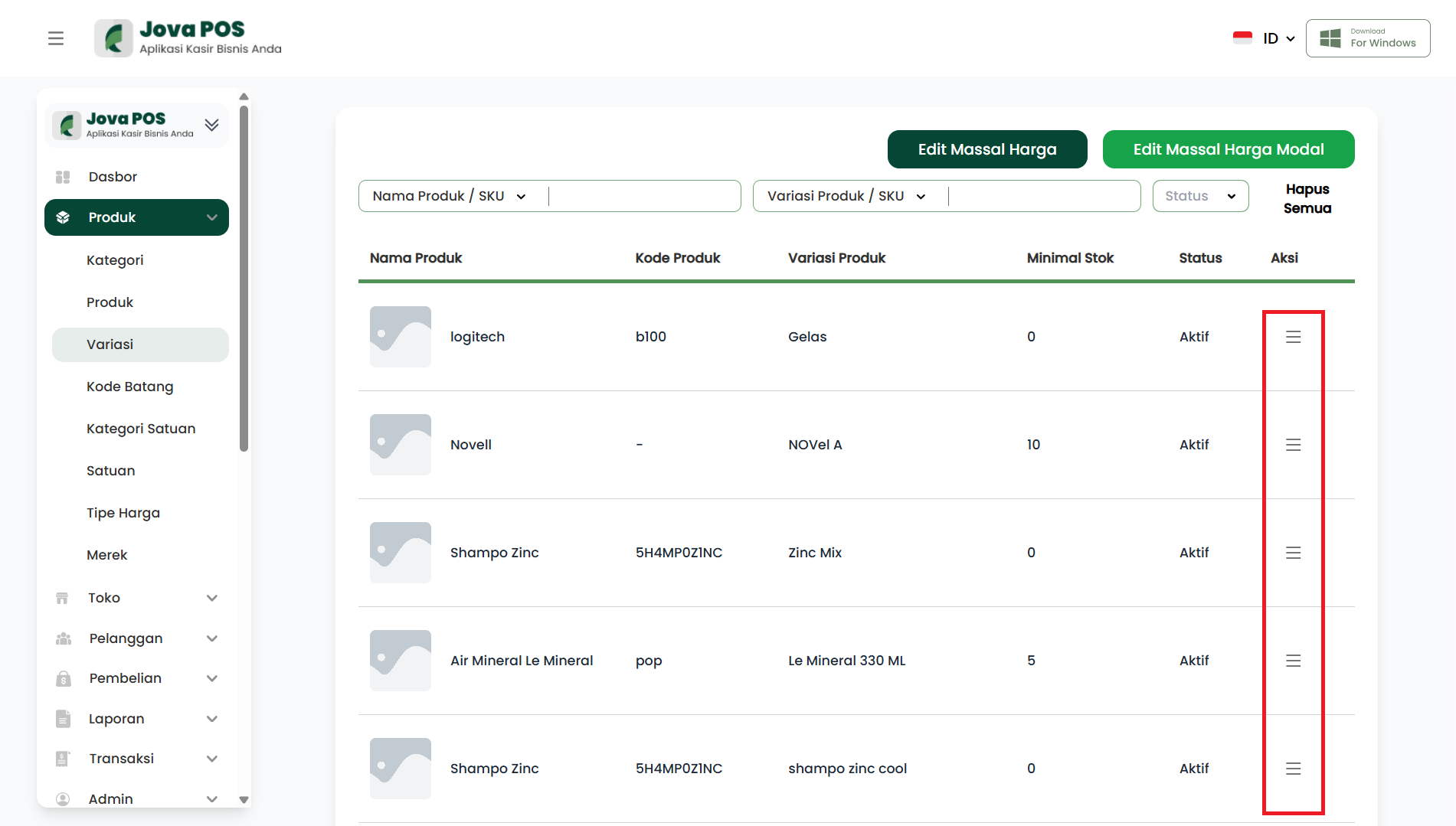
Editing a Variation
Edit variation is used when:
- Price changes
- Cost price is updated
Edit Variation Steps
- Select the variation
- Click Action
- Change the data
- Click Save
Bulk Edit Selling Price
The Bulk Edit feature is used to change the selling price of multiple variations at once.
Bulk Edit Selling Price Functions
With this feature, users can:
- Change the selling price of multiple variations at once
- Save time managing data
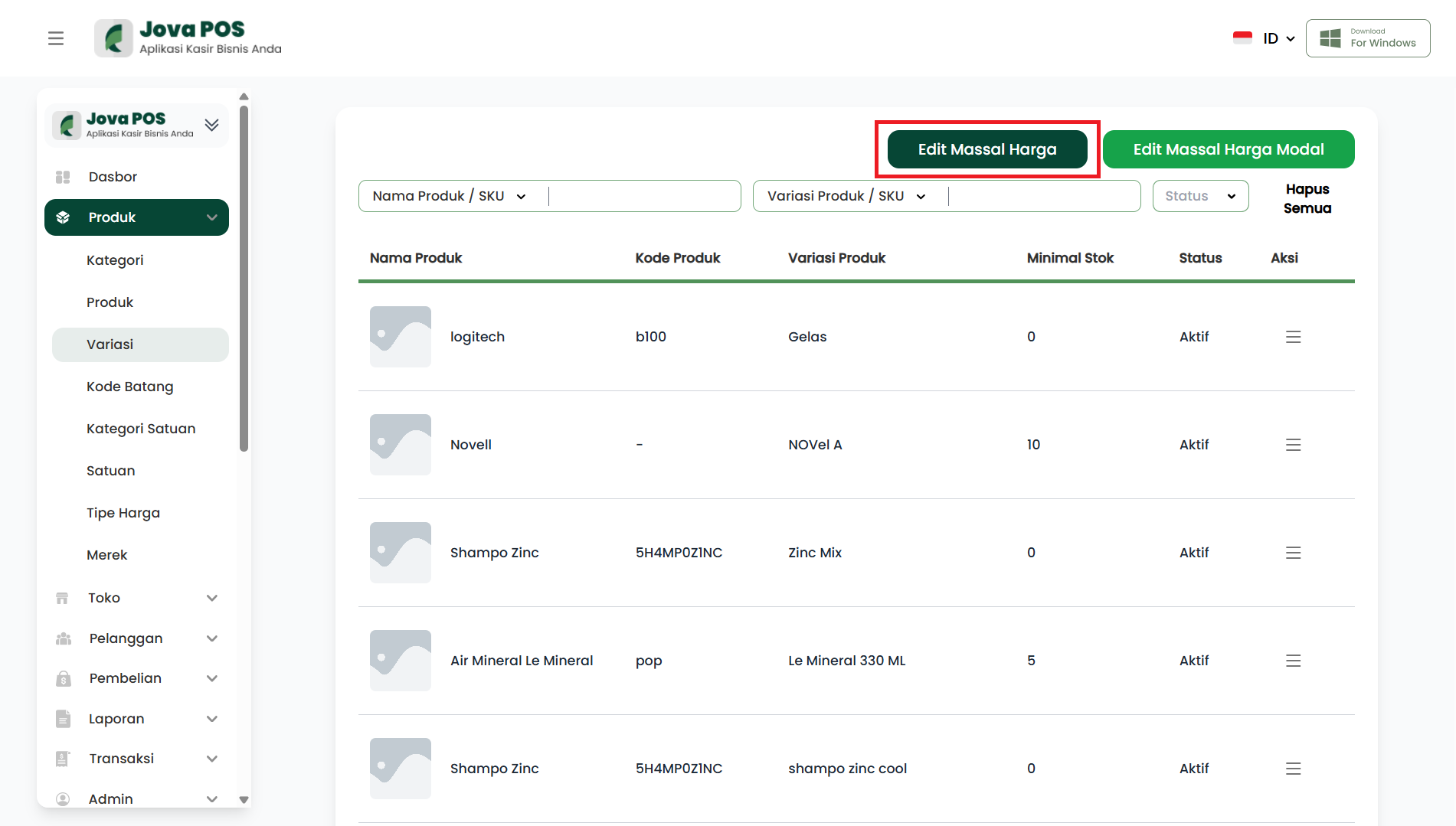
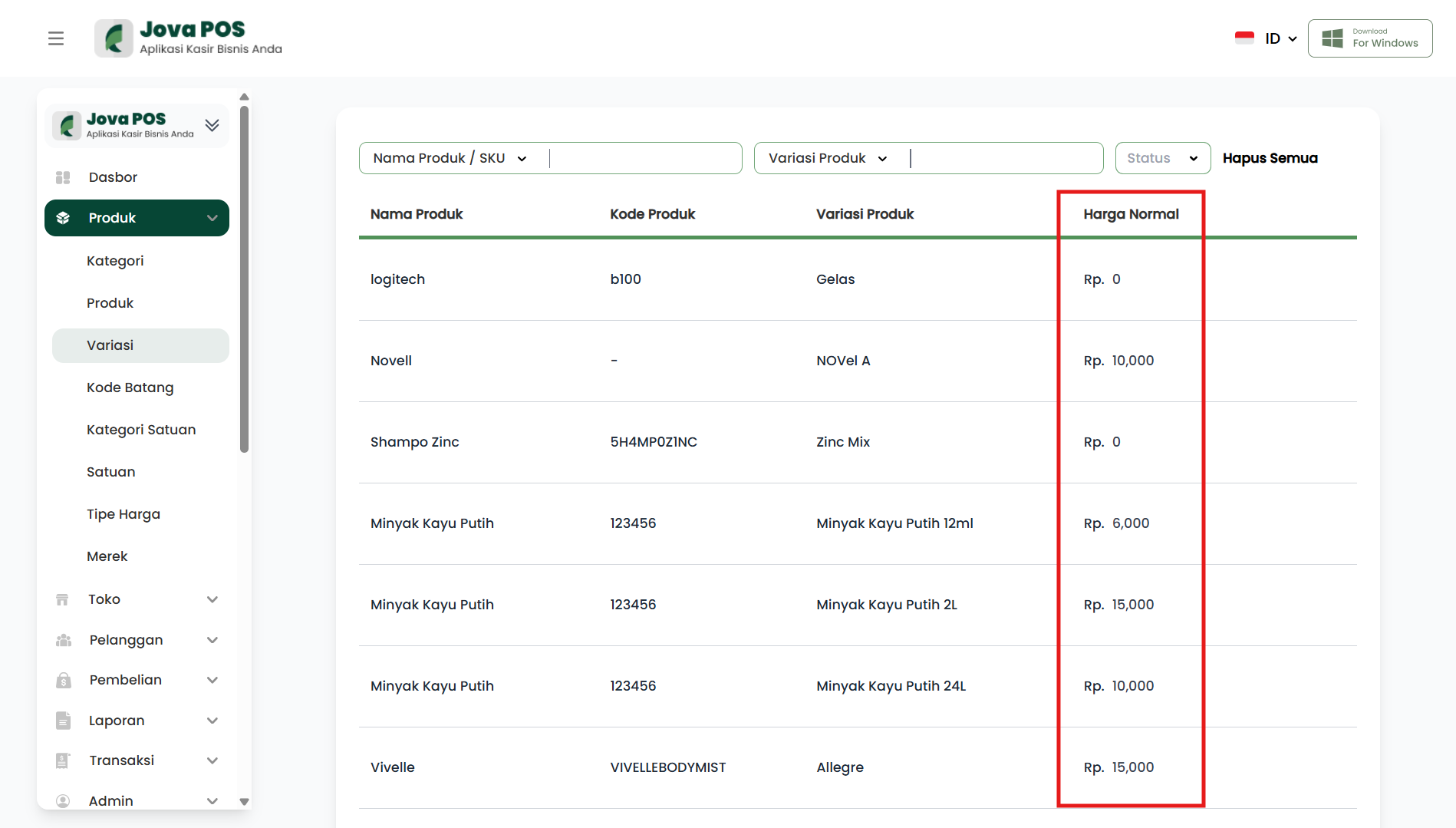
Bulk edit selling price only supports nominal input (e.g., Rp10,000).
How to Use Bulk Edit Selling Price
- Go to the Variations menu
- Click the Bulk Edit button
- Enter the new selling price (nominal)
- Click Save
Data That Can Be Changed in Bulk
| Data | Description |
|---|---|
| Selling Price | Change the selling price of many variations |
Bulk Edit Cost Price
The Bulk Edit Cost Price feature is used to change the cost price of multiple variations at once.
Cost price is used for:
- Profit calculation
- Financial reports
- Business analysis
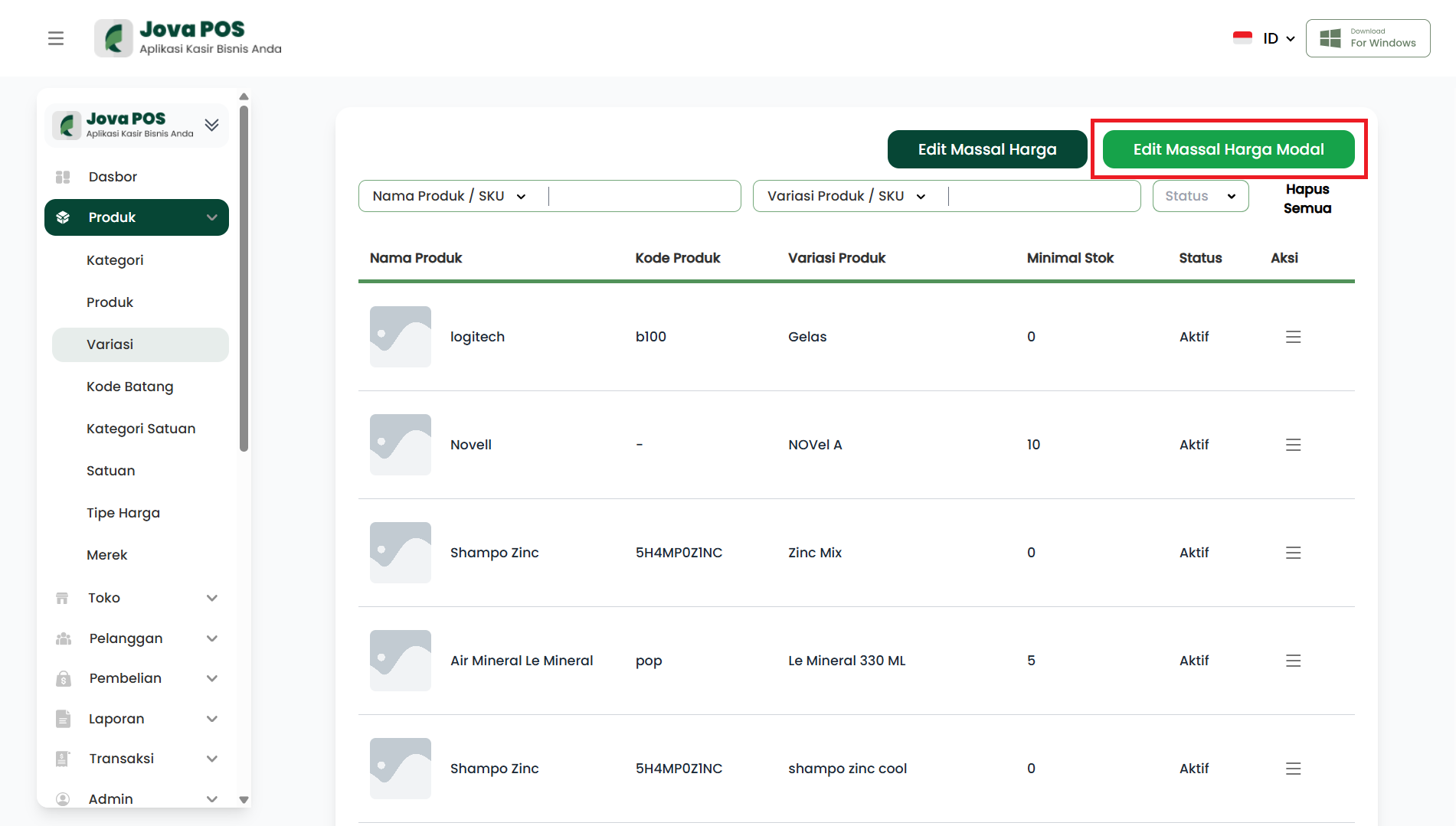
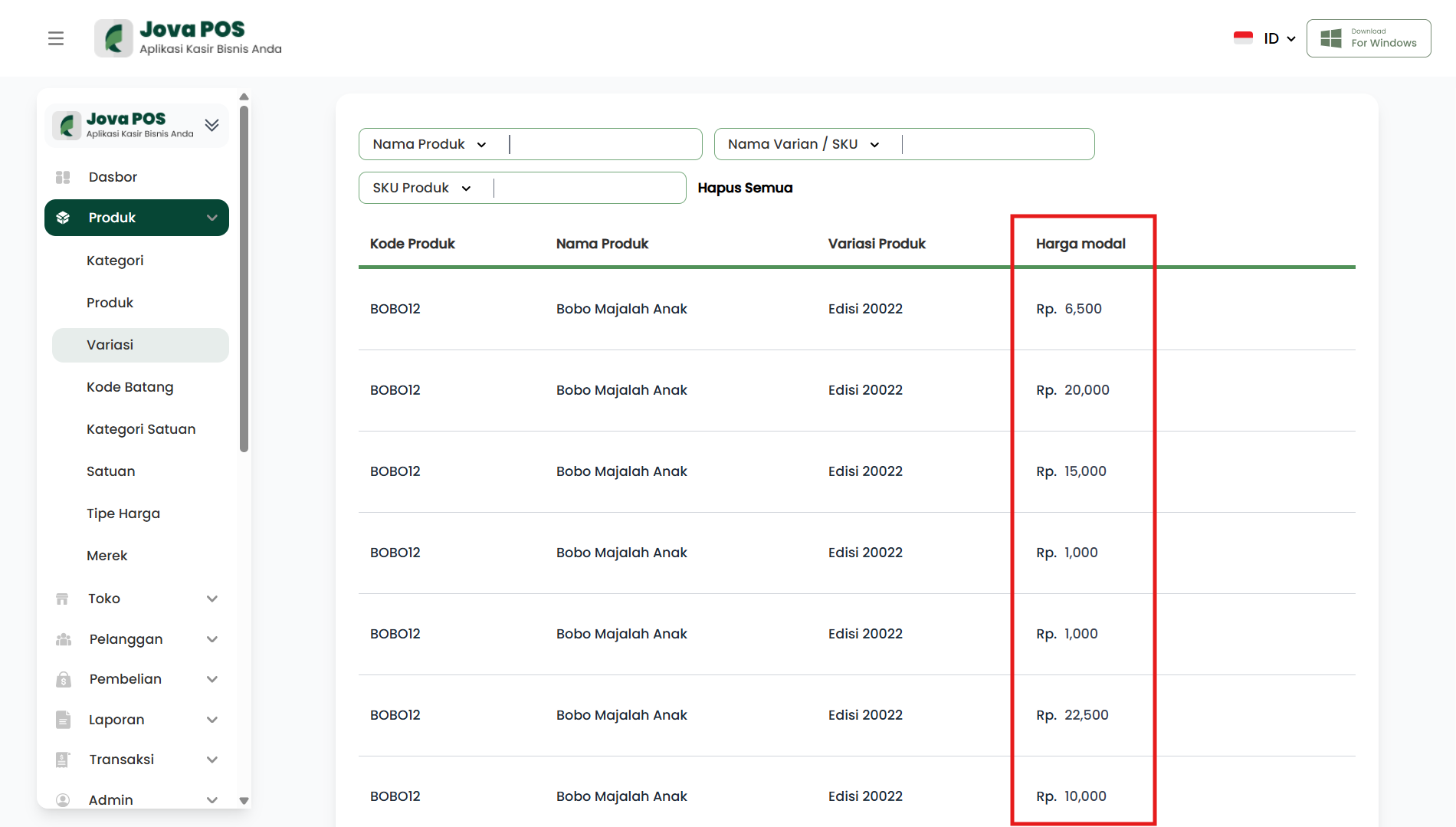
Bulk edit cost price only supports nominal input (e.g., Rp7,500).
Changes to selling price and cost price cannot be done simultaneously in one process. If you want to change both, do two separate bulk edit processes.
What Is Cost Price?
Cost price is the base cost of the product, not the selling price.
Example:
- Cost Price: Rp5,000
- Selling Price: Rp8,000
- Profit: Rp3,000
How to Use Bulk Edit Cost Price
- Go to the Variations menu
- Click Bulk Edit Cost Price
- Enter the new cost price (nominal)
- Click Save
Impact of Bulk Edit Cost Price
| Impact | Description |
|---|---|
| Reports | Profit value changes |
| Transactions | Selling price does not change |
| Analysis | More accurate data |
Variation Menu Access Rights
| Role | Access |
|---|---|
| Admin | Add, Edit, Bulk Edit, Delete |
| Cashier | View only |
| Owner | View only |
Variation Management Tips
Use bulk edit carefully and always double-check before saving.
It is recommended to perform bulk changes outside of operating hours.
Summary
The Product Variations menu helps users to:
- Manage products with multiple choices
- Set selling prices and cost prices
- Speed up transactions
- Generate accurate reports